Last updated 30 September 2026
When Jira Service Management is connected, you can link a Leysa request to a ticket. When the request finishes, Leysa adds an internal note to that ticket saying what happened.
Before you start
- Time needed: About 2 minutes
- Your role in Leysa: Owner or Admin
- Your role in Jira: An agent on your service desks
- Anything to set up in Jira first: No
Two things to know:
- Leysa's notes appear under the name of the person who connects. Choose that person before you start. Many teams use a shared agent account called "Leysa", so the notes do not show a staff member's own name.
- Only one service desk can be connected at a time. If Halo or Freshservice is connected, disconnect it first.
Step 1: Connect
- In Leysa, go to Integrations → Jira Service Management.
- Click Connect with Atlassian.
- Sign in to Atlassian as the agent you chose.
- Atlassian shows what Leysa is asking for. Choose your site, then click Accept.
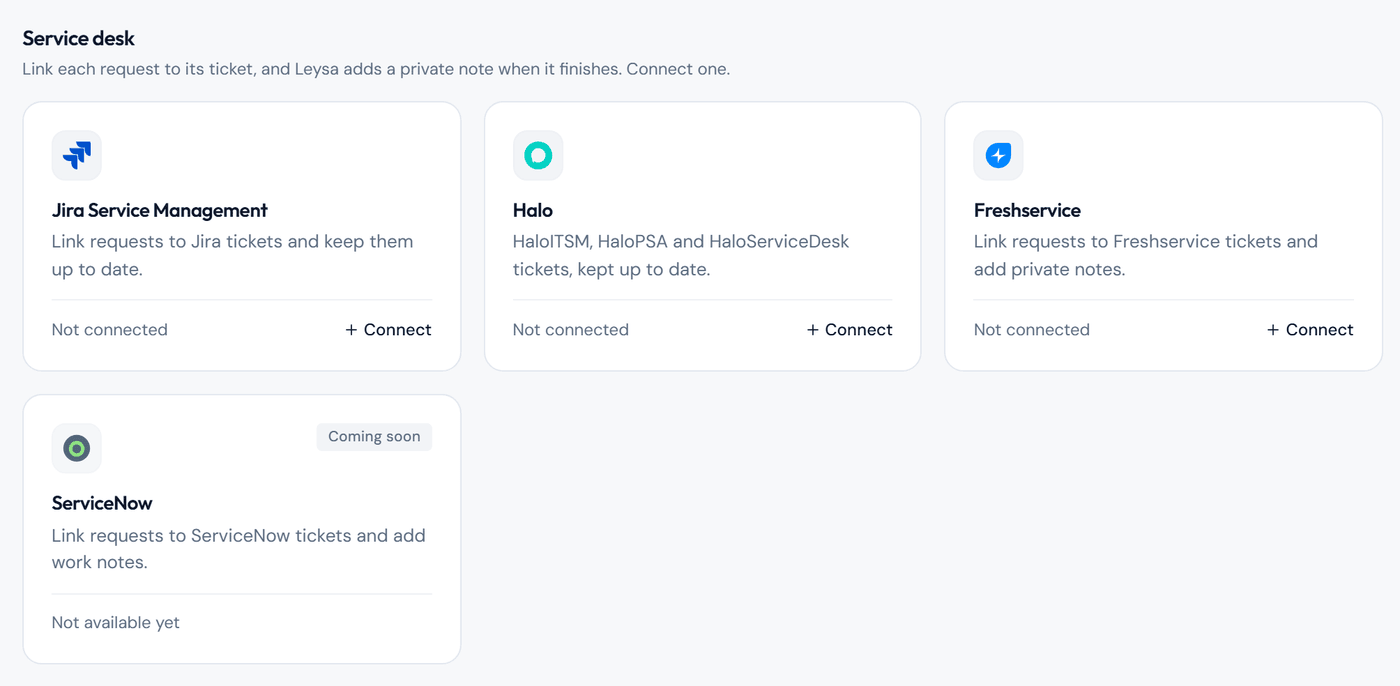
Jira Service Management is in the Service desk section of the Integrations page.
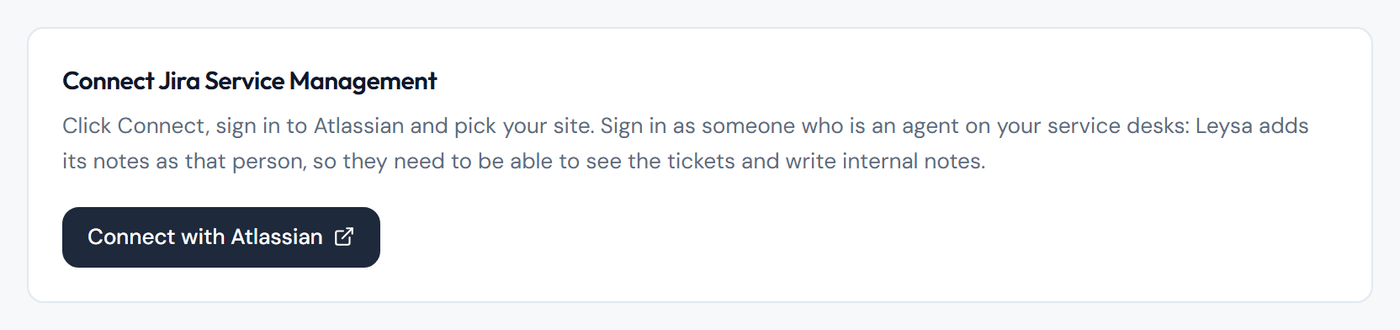
The button opens Atlassian's sign-in page.
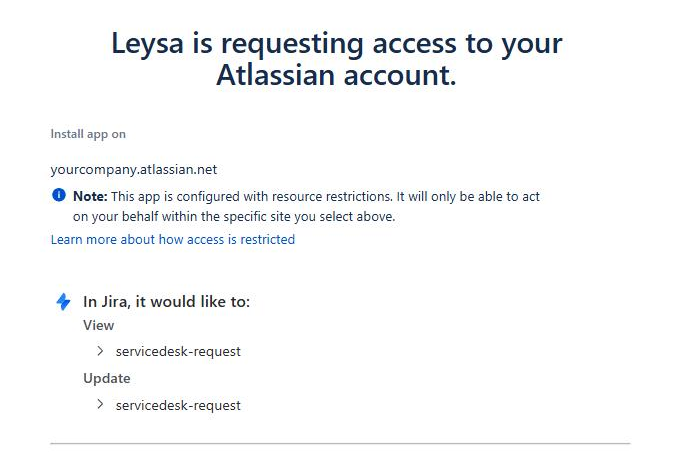
Atlassian's approval screen. Leysa asks to view and update service desk requests, and nothing else.
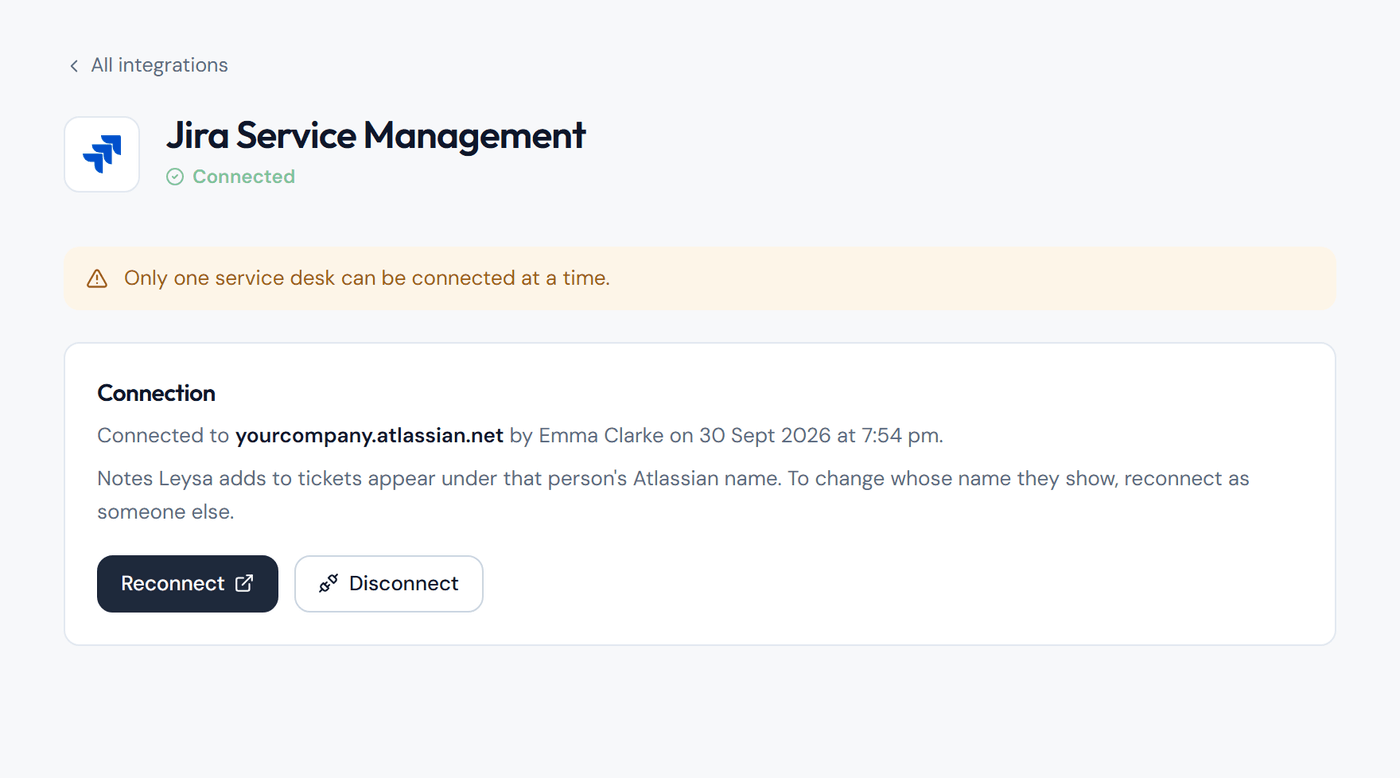
You return to Leysa, and Jira Service Management shows as Connected.
Check it worked
- The Jira Service Management page in Leysa shows Connected, with your site's address, who connected it and when.
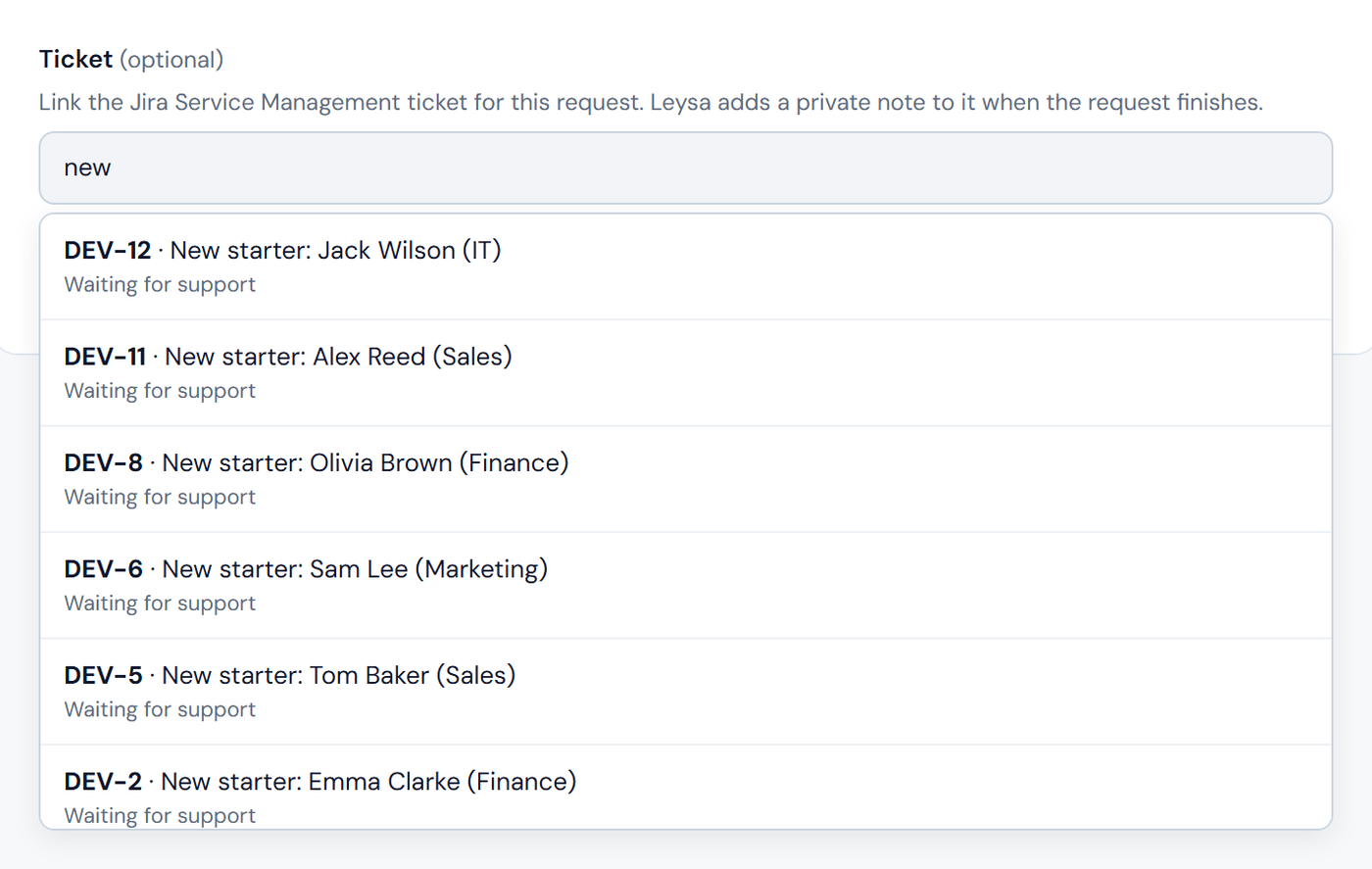
- Open any automation. A Ticket box now appears on the form. Type a ticket key such as
IT-42, or words from its title, and the ticket appears in the results.
What Leysa can do
Leysa can read requests and add comments to them. Nothing else.
- Its notes are internal, so the customer on the ticket does not see them.
- Its notes never include passwords or password links.
- Leysa keeps only the ticket key, not the ticket's contents.
- Your sign-in is stored encrypted.
If something goes wrong
- A ticket does not appear in the Ticket box. The agent who connected cannot see that ticket in Jira. Give that agent access to the service desk, or reconnect as an agent who has it.
- A request in Activity says the ticket was not updated. The agent who connected can no longer write internal notes on that ticket, or the connection was removed in Atlassian. Click Reconnect on the Jira Service Management page.
- The Connect button is missing. Another service desk is connected. Disconnect it first.
Change or remove the connection
- Change whose name the notes show: click Reconnect and sign in to Atlassian as a different agent.
- Disconnect: on Integrations → Jira Service Management, click Disconnect. Leysa stops linking requests to tickets straight away.
- Remove Leysa from Atlassian as well: open your Atlassian account settings, then Connected apps, and remove Leysa.
Related
Still need help? Tell us what you were trying to do and a member of our team will help.