Last updated 30 September 2026
Connecting Microsoft 365 is the first thing to do in a new workspace. Once it is connected, your team can run automations such as onboarding, offboarding, password resets and reports.
Before you start
- Time needed: About 5 minutes
- Your role in Leysa: Owner or Admin
- Your role in Microsoft 365: Global Administrator
- Anything to install: No
Step 1: Connect
- In Leysa, go to Integrations → Microsoft 365.
- Click Connect with Microsoft.
- Sign in with your Microsoft 365 administrator account.
- Microsoft shows a list of the permissions Leysa is asking for. Read it, then click Accept.
You return to Leysa, and Microsoft 365 shows as Connected.
Step 2: Wait for "Finishing setup" to clear
After you connect, Microsoft needs a few minutes to switch the new permissions on. During this time the Microsoft 365 page says Finishing setup, and your dashboard shows a notice.
You do not need to do anything. Leysa checks again every 15 seconds and tells you when the connection is ready.
Step 3: Set up the two roles
Connecting in Step 1 gives Leysa its permissions. Some automations also need a role, and Microsoft treats that as a separate step. Until the roles are assigned, Microsoft 365 can show as Connected and a mailbox or password automation can still be refused.
| Role | What it is needed for |
|---|---|
| Exchange Administrator | Shared mailboxes, distribution lists, mailbox access, forwarding, email aliases, rooms and resources |
| Authentication Administrator | Reset Password, Reset MFA, and creating, disabling or restoring accounts |
Neither role can change a Global Administrator or any other administrator.
The Microsoft 365 page in Leysa shows a tick or a warning for each role.
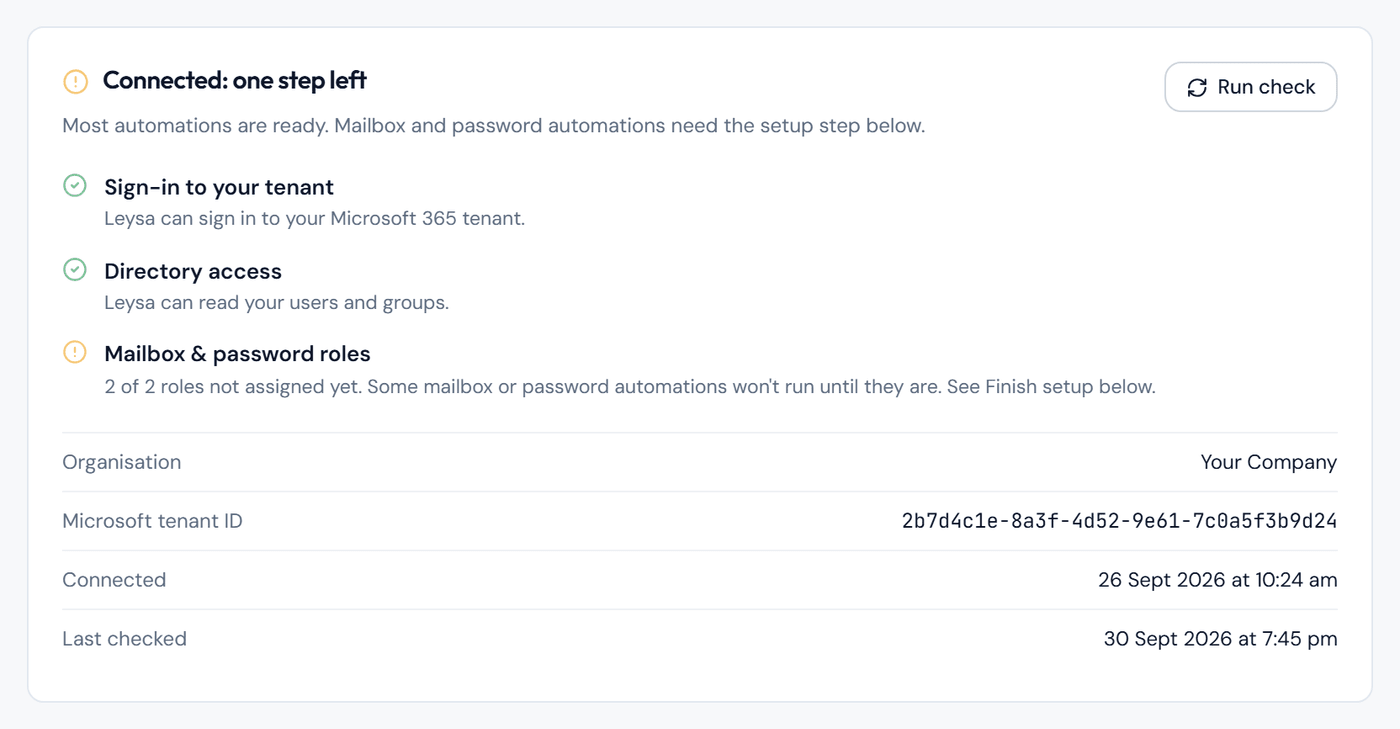
Before the roles are assigned, the last check shows a warning.
To assign them:
- On Integrations → Microsoft 365, click Set up roles for me.
- Sign in to Microsoft again with your administrator account.
- Back in Leysa, wait about a minute, then click Re-check roles.
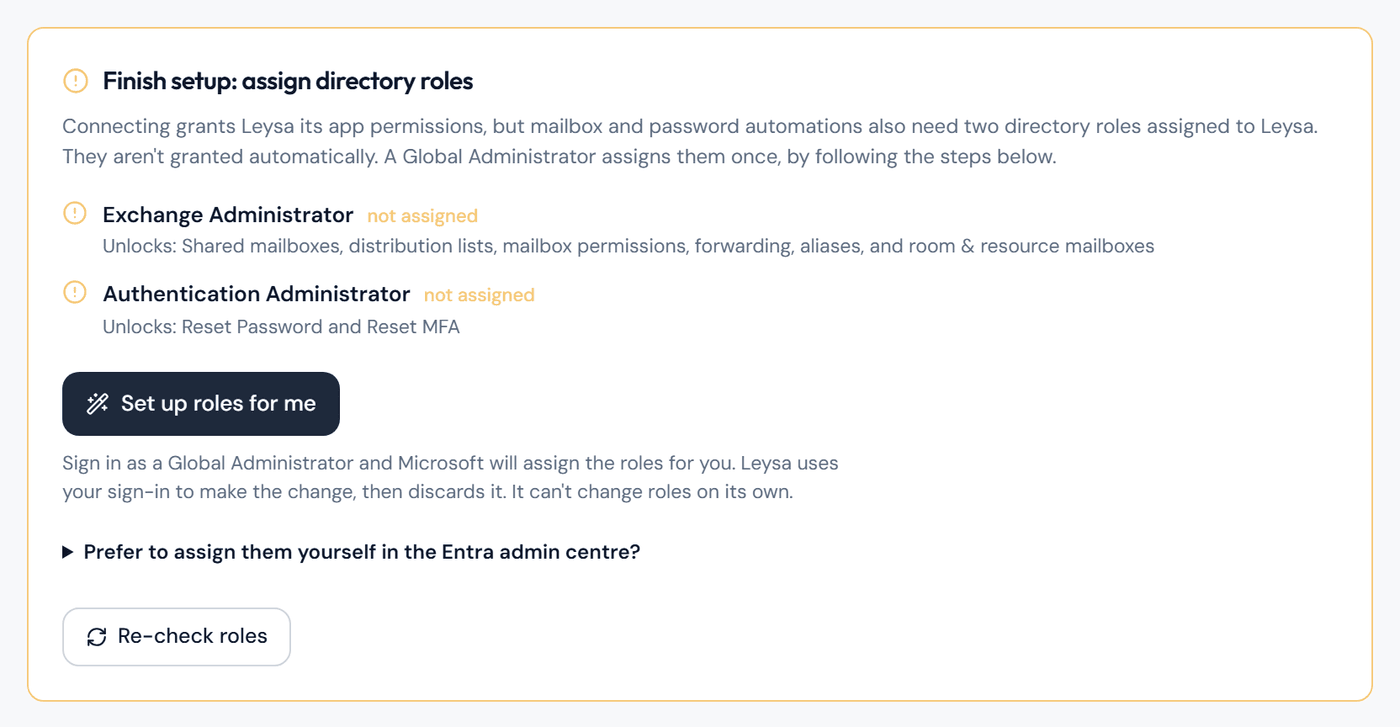
The panel appears only while a role is missing.
Leysa assigns the two roles using your own administrator sign-in, at that moment. It cannot assign roles on its own, and it only ever assigns the two roles in the table.
Afterwards, Microsoft lists the permission that allowed this against Leysa in Enterprise applications → Permissions. It does nothing unless an administrator is signed in. You can remove it, and the roles stay in place.
Check it worked
On Integrations → Microsoft 365, click Run check. The connection is ready when:
- every check has a tick
- the page shows your organisation's name
- both roles have a tick
What Leysa can do
Leysa can read your directory. It can change only the things its automations work on: people, groups, teams, licences, mailbox settings and guest invitations.
Leysa refuses to change any account that holds an admin role. Before it resets a password, changes a profile, offboards someone or changes mailbox access, it checks the roles that account holds. If it finds an admin role, or cannot check, it stops.
Leysa also switches on names in Microsoft's usage reports, so your reports show people's names and not anonymous codes.
If something goes wrong
- "Finishing setup" is still showing after 30 minutes. Click Run check. If it does not clear, contact us.
- Microsoft says you need admin approval. The account you signed in with is not a Global Administrator. Ask one to connect.
- Microsoft says to use a work or school account. Personal Microsoft accounts cannot connect. Sign in with your organisation's administrator account.
- Leysa says the tenant is already connected to another workspace. A Microsoft 365 tenant can be connected to one Leysa workspace only. Disconnect it from the other workspace first.
- A role still shows a warning after you assigned it. Microsoft can take a few minutes to apply a new role. Click Re-check roles. Do not reload the page.
- "Set up roles for me" does not work. You can assign the roles yourself, in one of two ways:
- In the Microsoft Entra admin centre: open Roles and administrators, open Exchange Administrator, click Add assignments, and search for Leysa. Do the same for Authentication Administrator. The Microsoft 365 page in Leysa lists each click.
- With PowerShell: the Microsoft 365 page in Leysa has a script you can copy. It is safe to run more than once.
- An automation says "Needs setup". A role is missing. See Why an automation says "Needs setup".
Change or remove the connection
- Disconnect: on Integrations → Microsoft 365, click Disconnect. Automations stop working until you connect again.
- Remove Leysa from Microsoft 365 as well: in the Microsoft Entra admin centre, go to Enterprise applications, find Leysa, and delete it. You can do this at any time, without Leysa's help.
Related
Still need help? Tell us what you were trying to do and a member of our team will help.